 domaiya
MEAL PLANNER
Dinner starts with
a little less thinking.
It is seven o’clock. Everyone is hungry. You are looking into the fridge again. Domaiya’s meal planner gives your household somewhere to decide what to eat, keep the recipe and turn the plan into a shop.
01
Make a plan that fits your week
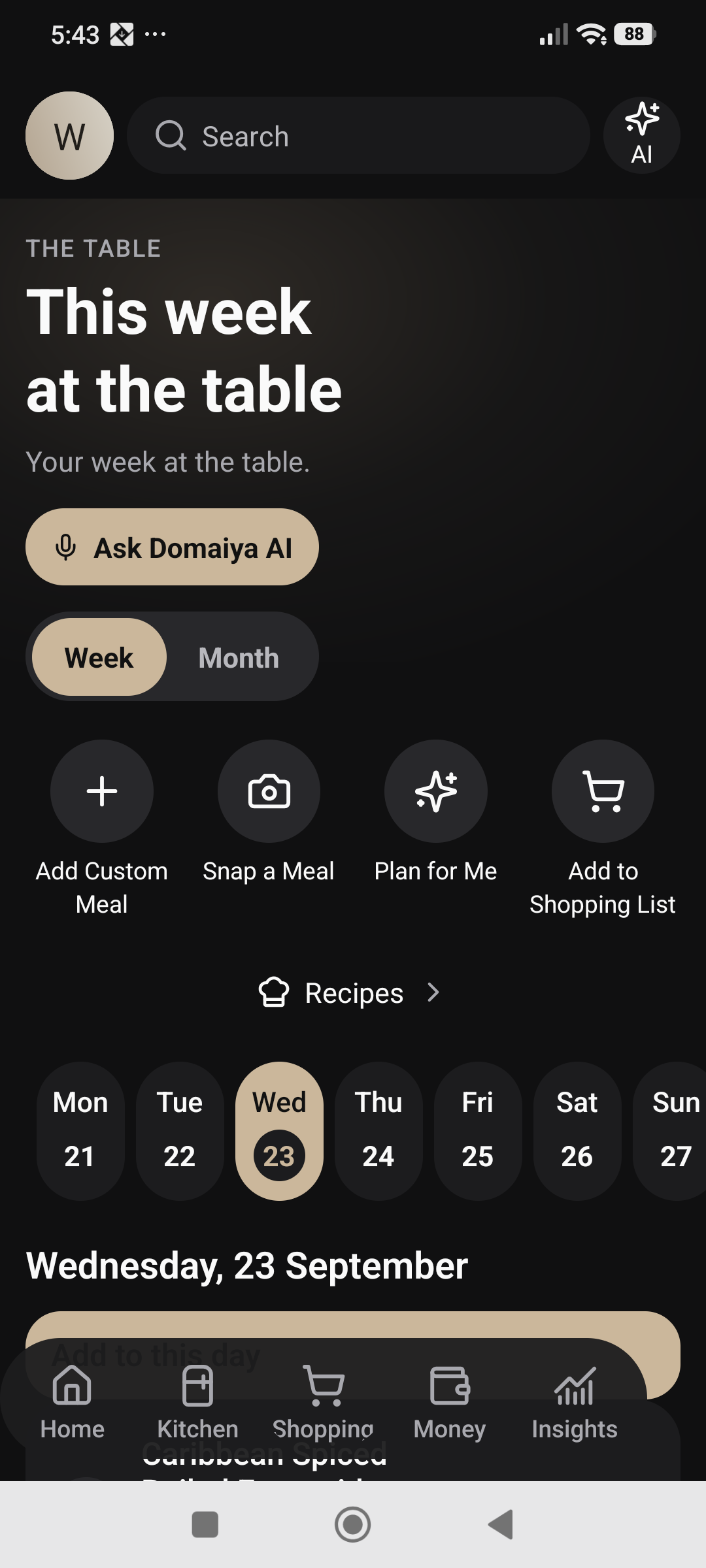
Switch between Week and Month to see your meals in context. Choose a day, then use Add Custom Meal to put something on the table. It can be an everyday favourite you already know how to cook, or a meal linked to a saved recipe. You do not need to build a recipe collection before you can start.
Keep a note with the meal—make extra for tomorrow, leave the chilli out, or use the vegetables first. Assign a cook so the plan includes who is doing it. Open a meal to see its details, and edit the saved plan when life changes.
02
Give your recipes a home
Open Recipes to keep dishes you want to make again. Create a recipe with its name, ingredients and instructions, or paste a recipe URL to import the details. Review the imported information before saving it; a website’s layout can affect what is recognised.
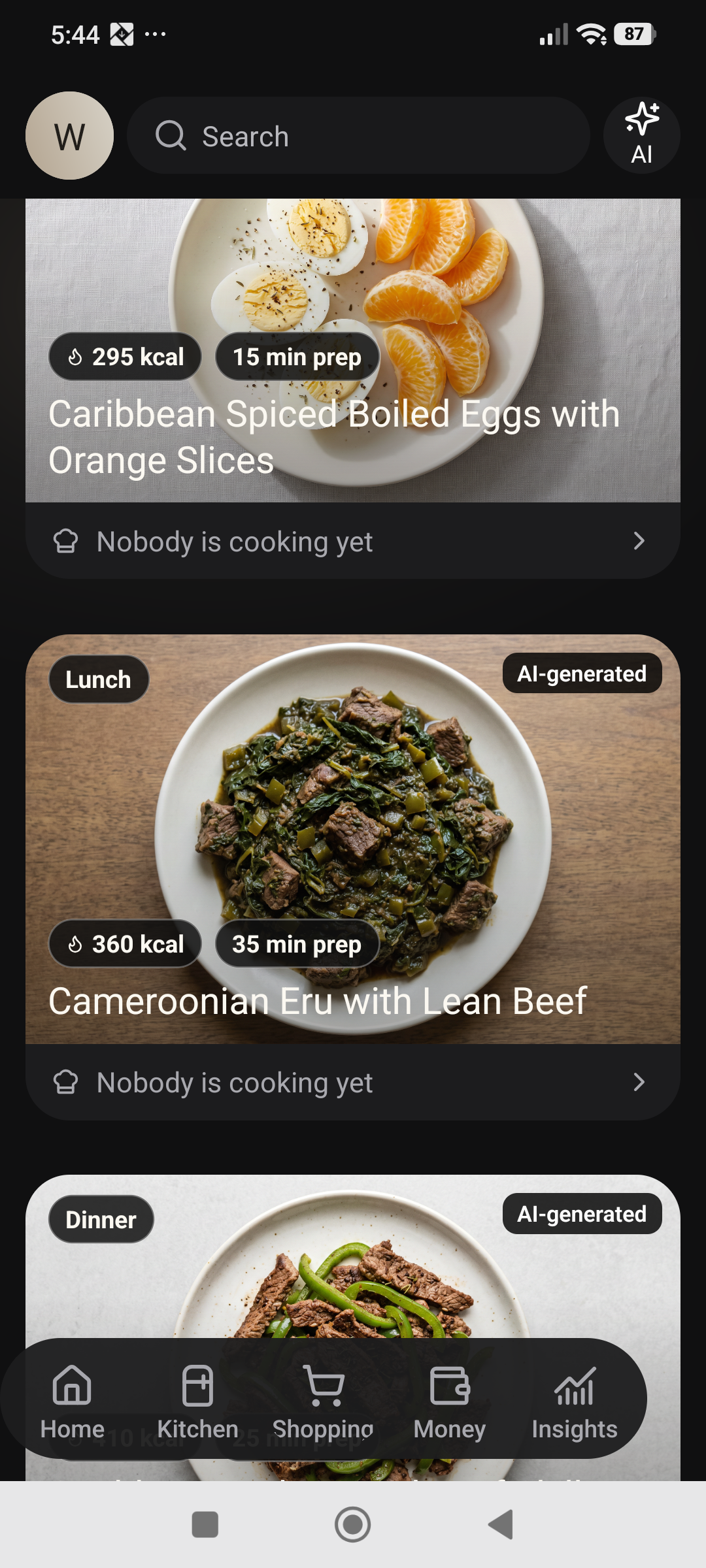
Choose a saved recipe when planning a meal instead of searching for the link again. Meal cards bring the dish, its picture and available preparation or calorie information together. Pictures help you recognise the meal; nutrition figures are estimates, not a substitute for checking ingredients and portions.
03
Let “Plan for Me” do the first draft
Choose Plan for Me when you would like some ideas. Start with how you want the meals to feel: Quick Meals, Kid Friendly, High Protein, Vegetarian or Budget Friendly. Choose cuisines, then add your own notes or pantry restrictions—for example, “Use the remaining spinach and keep weekday dinners quick.”
Choose the next three days, this week, two weeks or a month from the options available in your app plan. Review the proposed meals before choosing Apply to Calendar. Suggestions become a saved plan only when you apply them. Check ingredients yourself for allergies and dietary requirements.
04
Turn the plan into a practical shopping list
Choose Add to Shopping List from the planner to review ingredients for the displayed week or month. Domaiya compares the plan with recorded kitchen inventory and shows the ingredients that need your attention. You can adjust quantities and known package sizes before confirming what goes onto the shared list.
A match against the pantry is a useful starting point, not proof that the amount is still in your cupboard. Check stock and quantities, and review meals whose ingredient information is incomplete. The final list is shared with your household, so whoever shops can use the same plan.
A SMALL ROUTINE. A USEFUL DIFFERENCE.
How to get started
Check your kitchen
Look through Pantry, Fridge and Freezer before deciding what to use.
Choose your meals
Add familiar meals yourself, pick saved recipes or review a Plan for Me suggestion.
Make it a household plan
Check dates, add useful notes and choose who will cook.
Review the shopping
Check missing ingredients and quantities, then confirm additions to the shared list.
IN EVERYDAY LIFE
Picture this.
Sunday evening: plan a pasta dinner around the spinach already in the fridge, save the recipe, assign a cook and review the missing ingredients. On the shopping trip, the household uses the same list. On the day, the saved meal is there to open.
WATCH THE STEPS
Watch a meal plan take shape
Choose meal preferences, generate ideas and scroll through a real meal-plan preview.
45 seconds · HD · Synthetic Willa narration. Actual dark-mode recording. Waiting time is shortened. Some meal images are still loading in this build. No saved meals were changed.
Open the video guide and transcript ↗THE USEFUL DETAILS
Your questions, answered.
Do I have to use AI to plan meals?
No. You can add your own meals and use saved recipes. Plan for Me is an optional starting point when you want suggestions.
Does planning a meal automatically buy ingredients?
No. You review ingredients and confirm additions to your shopping list. Domaiya does not place a grocery order.
Can I see meals elsewhere in the app?
Saved meals also appear in the household calendar, and today’s meals feed the home view.
MAKE IT PART OF YOUR DAY
Decide what to eat—and who cooks.
Choose the day and meal
Open the day and meal slot you want to plan. Add a meal name and the details your household needs.
Choose the cook
Select the person preparing that meal, so the plan includes the responsibility as well as the food.
Save, then check the plan
Save the meal and reopen it. Check the day, meal name and chosen cook before relying on the plan.
Keep completion separate
A planned meal is not a cooked meal. Use the available cooking and completion controls when the job is actually done.