 domaiya
PANTRY, FRIDGE & FREEZER
Know what you have.
Use what you buy.
That second jar of sauce. The vegetables hidden at the back. The freezer drawer nobody can remember. Keep a practical record of your food in three familiar places: Pantry, Fridge and Freezer.
01
Three places. One kitchen inventory.
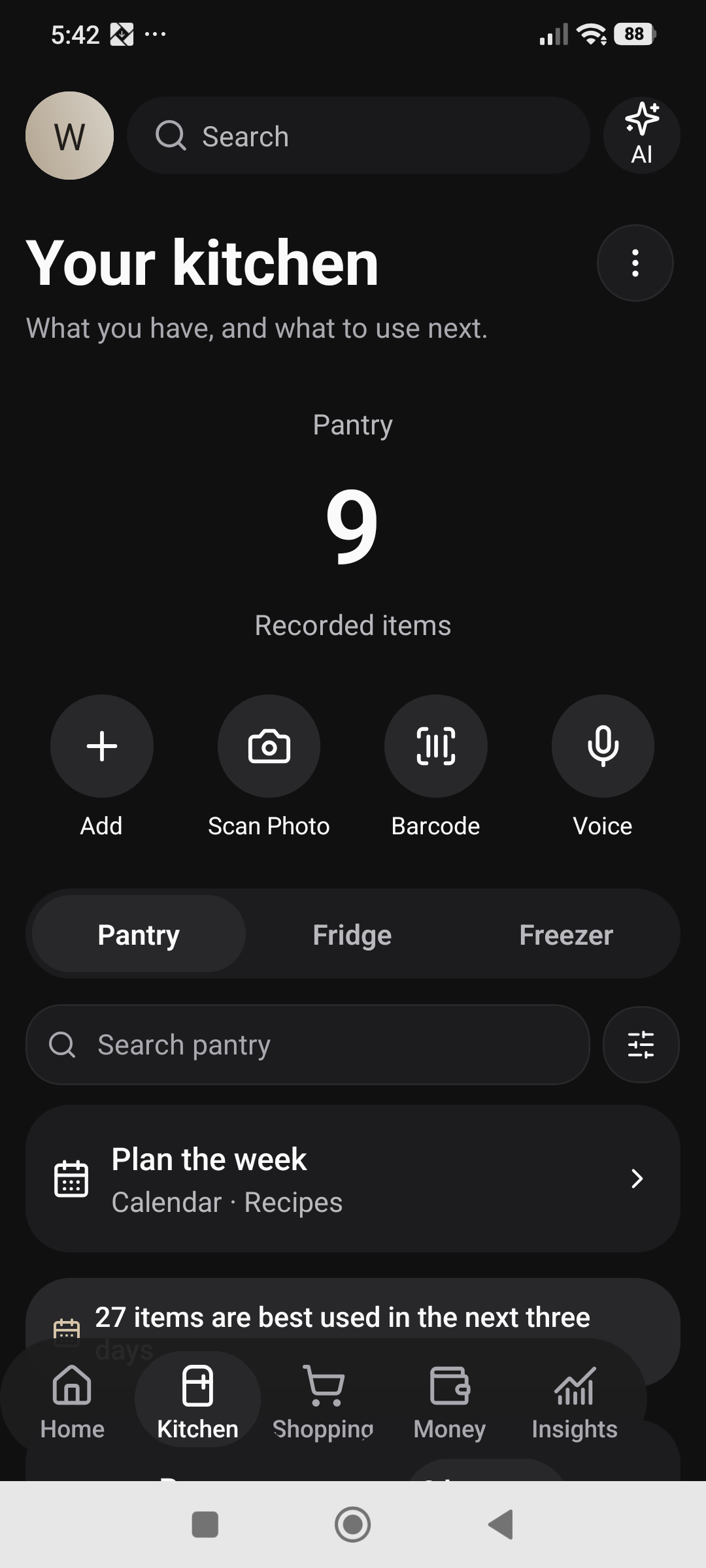
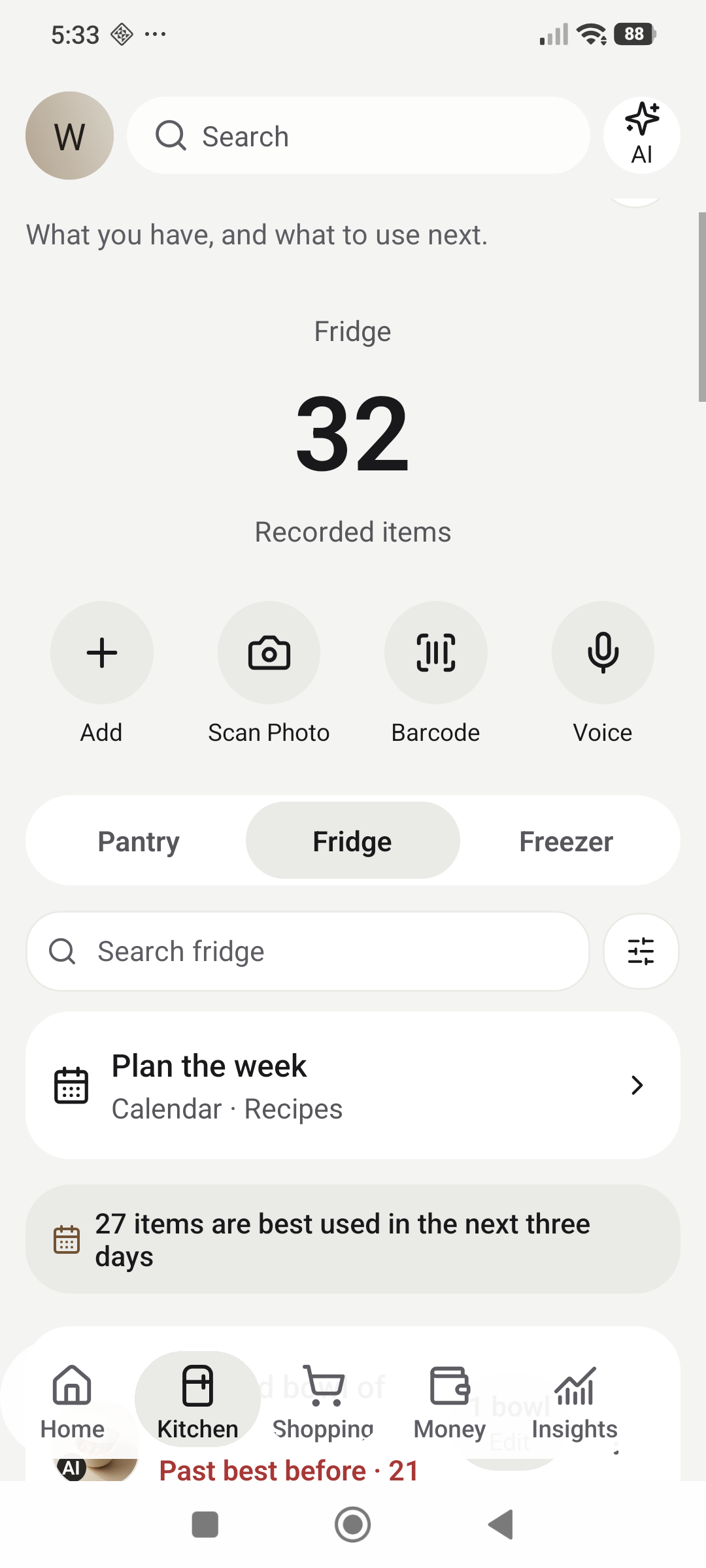
Switch between Pantry, Fridge and Freezer to see the food recorded in each location. Search the location you are looking through instead of scrolling past everything in the kitchen. Each saved item gives you a place to keep its name, quantity, category and expiry date.
Start with the food you use most often. You can build the rest of the inventory gradually. When you move something from the freezer to the fridge, update its location in the app so your record follows the food.
02
Add food while the bags are still out
Enter an item yourself, scan a barcode, photograph items or use voice entry. For example, say “add two litres of milk to the fridge,” then review the recognised information. These shortcuts help with entry; you remain in control of the saved record.
Check the name, quantity and storage location before saving. Barcode information depends on the product information available, and a photo cannot reliably read every date or quantity. Add or correct missing details yourself.
03
Give soon-to-expire food a place in the plan
Record expiry dates and use the inventory’s date information to decide what needs using first. Keeping dates alongside quantities makes it easier to distinguish “we have some” from “we should use this now.”
Your inventory is based on the records you maintain. Update it when you use food, buy more or throw something away. The app cannot inspect the contents of your fridge, and recorded dates do not replace checking food and packaging.
04
Connect what is in the kitchen to what is for dinner
Use your kitchen inventory while planning meals, then review the planner’s ingredient comparison before adding missing items to the household shopping list. This connects the three decisions: what you have, what to cook and what to buy.
After shopping, review the purchased items you want to put away into the pantry, fridge or freezer. Check the destination and quantities so the next meal plan starts from a useful record.
LOOK BEYOND THE FRONT OF THE PACK
Explore a product’s nutrition information.
Open the product scanner
Choose the product-scanning option from Insights. Use the barcode or label-capture option offered by the app for the product in front of you.
Capture a readable code or label
Keep the barcode steady and in focus. When using a label photo, make the ingredients and nutrition panel readable. Check that the result matches the product you actually have.
Read the information behind the result
Review the available ingredients and nutrition figures. Where the product data supports them, the result can include Nutri-Score and NOVA processing information. These describe different aspects of a product, so read the explanation alongside each result.
Check what is missing
A lookup may not contain every ingredient or nutrition field. Use the package label to check missing information. A missing result is not a statement that a product is healthy or unhealthy.
REAL APP WALKTHROUGH
From barcode to nutrition and ingredients.
27 seconds · Real Android screen recording, Build 82. Waiting time removed. Synthetic Willa narration and English captions.
Check the packet, then the result.
Scan the barcode
Hold the code in the camera frame and check that the returned product matches your packet.
Open Nutrition and Ingredients
Read the available figures and their stated basis, then check the ingredient list. Catalogue ingredients may be in the original product language.
Review warnings before relying on a result
This product's catalogue contains conflicting sugar amounts. Domaiya withholds those figures and displays a warning. Check the current packaging; missing values do not mean zero.
This demonstration ends at an unsaved review. No scan-history or pantry item is added.
Read the video transcript
Scan a food barcode in Domaiya, then check that the product matches your packet. Open Nutrition to see the available figures and their stated basis. Scroll through the details, then open Ingredients to read the ingredient list. Here, the catalogue contains conflicting amounts, so Domaiya withholds those figures and shows a warning. Always check the current packaging before relying on the result.
A SMALL ROUTINE. A USEFUL DIFFERENCE.
How to get started
Choose a location
Start with Pantry, Fridge or Freezer.
Add and review
Use manual entry, a barcode, a photo or your voice; check the details.
Record dates and amounts
Save the quantity and expiry date you know.
Keep it current
Update items as you use, move or replenish them.
IN EVERYDAY LIFE
Picture this.
Before the weekly shop, check the fridge for food that needs using. Plan a meal around it, review the missing ingredients and update the inventory when the new groceries are put away.
THE USEFUL DETAILS
Your questions, answered.
Can I track food without scanning it?
Yes. Manual entry is available, including for leftovers or products a scanner does not recognise.
Does it update stock by itself when I eat something?
Keep the record current as food is used or restocked. The app does not automatically observe what is in your kitchen.
Can an item move between locations?
Yes. Move a recorded item to another kitchen location when you move the food.
CURRENT APP JOURNEY · UPDATED 20 OCTOBER 2026
From a food label to a saved product record.
Choose the input
Open Product Scan for a label photo or barcode lookup. Barcode results depend on the product database; check the exact product and pack.
Review what is available
Read nutrition, ingredients and any displayed Nutri-Score with its source and limitations. Missing data is not a zero or a health verdict.
Save the analysis
Choose Save to scan history. Reopen the saved report and, for a photo scan, check the retained original label.
Keep scan history and stock distinct
A saved product analysis does not itself mean that food was added to the fridge, freezer or pantry. Review and save any inventory addition separately.
The iPhone design shown here was captured on 20 October 2026 and remains a pre-release preview. App Store release is coming soon; controls and availability can vary by app version and plan.
MAKE IT PART OF YOUR DAY
Check the fridge before you buy it again.
Put the item in the right place
Choose Pantry, Fridge or Freezer. Add the food you want to keep track of, then check the item and quantity before saving.
Keep the quantity useful
Change the recorded quantity when you use or add food. Domaiya’s inventory reflects the updates you make.
Move the item when storage changes
Move a saved item between your kitchen locations and check it in its new location.
Treat scanning and stock as separate decisions
Review scan results before saving them. A saved product analysis does not automatically mean the item has been added to stock.