 domaiya
HOUSEHOLD BUDGET & BILLS
See the month.
Before it surprises you.
The month is not over, but the money nearly is. Bring your recorded spending, household limit, receipts and bills into one place, so the next decision starts with a clearer picture.
01
Set the limit your household wants to work within
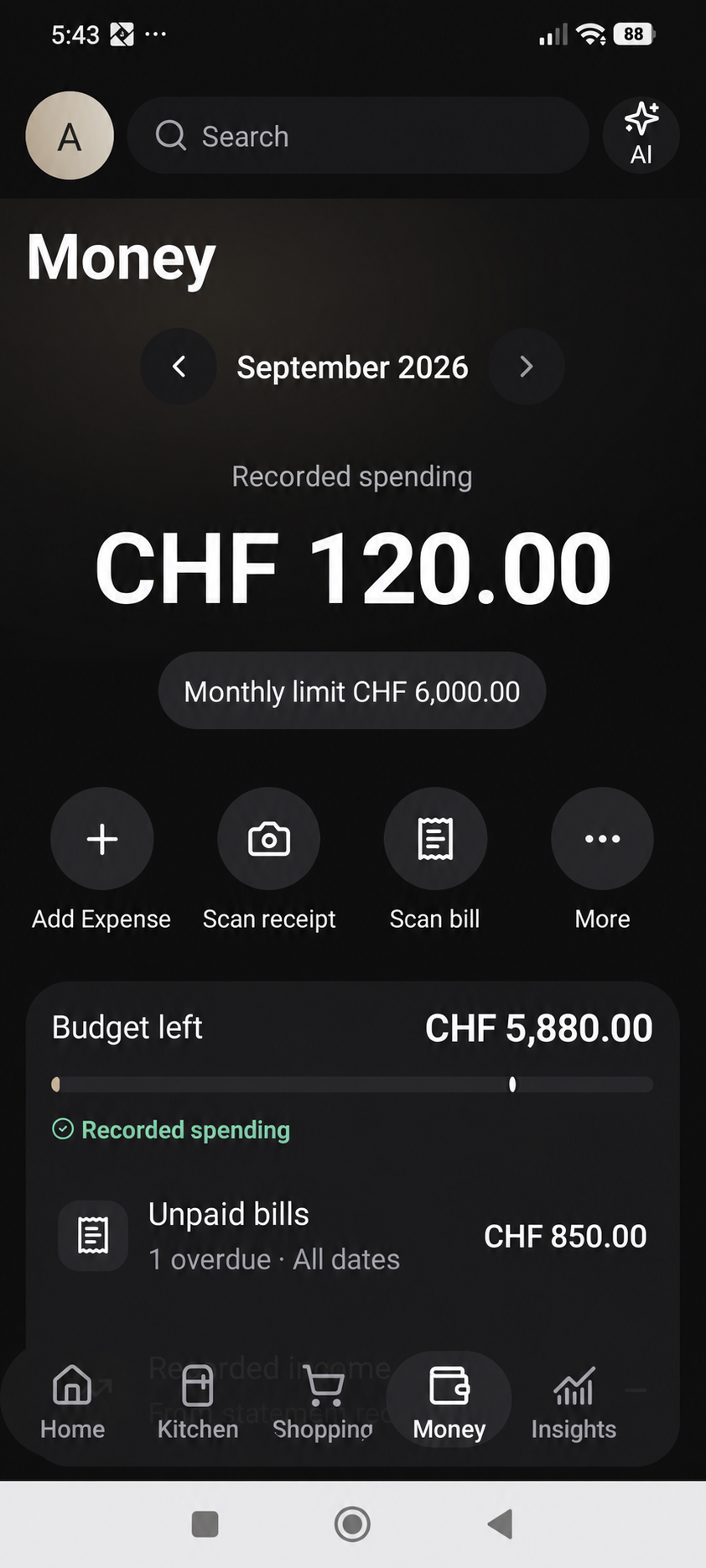
Record a monthly household spending limit and organise spending by category. Your budget view brings the limit and recorded expenses together so you can see how much has been used. Category limits can help you decide which parts of the month deserve attention.
The overview can compare recorded spending with how far through the month you are. It is a prompt to look at the records and upcoming commitments, rather than a prediction that everything will work out automatically.
02
Turn the receipt into a record you can use
Choose Scan receipt to capture a purchase, then review the recognised details before saving. Check the merchant, amount and category against the receipt. Keep the receipt attached to the expense so there is context when you return to the record later.
You can also record expenses yourself. Regularly review shopping purchases and any entries that still need attention. A useful budget comes from the purchases you record, including the small ones you would otherwise forget.
03
Know what is due and what has been paid
Keep bills with their amounts, due dates, categories and payment records. Add a bill using the supported capture options—camera, photos or PDF—and review the extracted information before saving it. Open the bill again when you need its details.
Unpaid bills are commitments, not money already spent. Keep payment records current and check remaining amounts. Bills in another currency retain their original currency and are kept out of household totals where they cannot be safely combined.
04
Separate a plan from a bank balance
You can record expected household income to help with planning. Expected income is the amount you plan around, not a confirmation that money has arrived. The difference shown against spending is not your bank balance and does not automatically deduct every future bill or savings commitment.
Use the overview to start a practical conversation: what has been recorded, what is due, and what can change this month? Domaiya organises your household records; it does not move money or pay a bill for you.
05
Bring in a bank statement
Download a statement from your bank as a PDF or CSV, then open the statement-import area in Domaiya and choose the file. This is a file import: you do not give Domaiya your bank login or authorise it to move money.
Choosing the file starts the import. When it finishes, read the result and check the transactions, dates, currency and categories against the original. Open any charges that need a category, then check the month they belong to in Money. Keep the original statement available while you review.
A statement gives the budget recorded transactions to work with. Expected income, a spending limit and money recorded as received are different figures; check which one you are reading before making plans.
FOLLOW THE WHOLE ROUTINE
From document to household record.
Scan a shopping receipt
Open the receipt scanner, capture or choose a clear receipt, and let recognition finish. Compare the purchase details and total with the original. Review the categories and the items to keep before confirming. Return to the expense record to find the attached receipt.
Add and review a bill
Open Bills and choose Camera, Photos or Choose a PDF bill. Check the recognised supplier, amount, currency and due date. Save after reviewing. Open the bill’s details when you need the document or want to check its payment status; scanning a bill does not pay it.
Import a bank statement
Choose a PDF or CSV from the statement-import screen. Selecting a file starts processing and adds the recognised records. Check the import result and resolve entries that need a category, then compare the relevant month with your source statement.
Read the budget
Set a monthly household limit, select the month you want to review, and compare recorded spending with that limit. Open the categories and individual entries behind the total. Review upcoming bills separately so unpaid commitments are not mistaken for completed spending.
A SMALL ROUTINE. A USEFUL DIFFERENCE.
How to get started
Set a monthly limit
Choose an amount your household can plan around.
Record your spending
Add expenses or scan and review receipts.
Add upcoming bills
Check due dates, amounts and payment records.
Review the month together
Look at categories and remaining commitments before the next purchase.
IN EVERYDAY LIFE
Picture this.
In week two, a student checks recorded food and transport spending against the monthly limit. Instead of waiting for the last four days of the month, they can see which records and upcoming bills need attention now.
WATCH THE REAL APP
Prepare a household expense
23 seconds · HD · Willa narration and English captions. A real phone demonstration of setup and review, with no household changes saved.
Synthetic voice. Edited for length.
WATCH THE STEPS
From receipt photo to review
See Domaiya read a fictional grocery receipt and open its recognised details for review.
23 seconds · HD · Synthetic Willa narration. Actual light-mode recording using a fictional Demo Market receipt. Photo-library browsing is omitted for privacy. No financial transaction was saved.
Open the video guide and transcript ↗WATCH THE REAL APP
From a PDF bill to a checked record
Follow the PDF selection, recognised bill details and category choice in a real phone recording.
28 seconds · Light mode · HD · Willa narration and English captions. Synthetic voice. Fictional bill; processing wait omitted; no bill saved.
THE USEFUL DETAILS
Your questions, answered.
Does Domaiya connect to my bank or pay bills?
This feature organises the expenses, bills and income plans you record. It does not make bank payments.
Are scanned receipts saved without checking?
Review the recognised purchase details before saving them. Capture quality and document layout can affect recognition.
Are the figures on this page someone’s real finances?
No. The app screen shown here uses anonymised example information.
Watch a bank statement being imported and reviewed ↗
Watch a bill photo become a reviewable draft ↗
MAKE IT PART OF YOUR DAY
Keep the document. Check the record.
Review the receipt
Check the merchant, date, currency, items and total before saving. Correct the details that need attention.
Save once and check the result
Find the saved receipt or expense and reopen its original document. If a save message is uncertain, use the available check-save control before trying again.
Put the bill’s due date in view
Review the supplier, amount, currency and printed due date. Save the bill, reopen it and check its status and attached original.
Plan from recorded spending
Use recorded expenses and category views as a starting point for household decisions. Records and spending limits do not guarantee that a car, school fees or other goal will be affordable.